
I was solving the problem of how to regularly upload data to an FTP server. The point was that our information system periodically generates a report in Excel. I need to get this report onto an FTP server, where I then process the data from these files with a PHP script.
Keep remote directory up to date
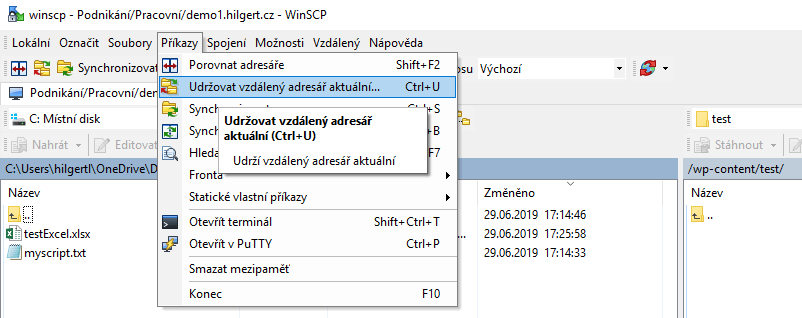
The first thing I tried (and it occasionally even worked) was a feature in WinSCP: Commands – Keep remote directory up to date. It works like this: you connect to the desired FTP server and run this function over the correct local and remote directory. First, an initial synchronization is performed. Then the program waits, and as soon as a local file is changed it copies it to the server. The catch is that when someone opens the local file, WinSCP gets upset that the file is in use and synchronization stops.
Let’s get scripting
I kept looking and came across the option of creating scripts. So the report files are generated first, and only then is a script run that uploads the files to the server.
So I create a text file myscript.txt and write into it:
winscp.com /script="C:UsershilgertlOneDriveDocumentsMy Web Siteshilgertblogexport.txt" /log="myscript.log"
I change the file extension from txt to bat and copy this file into the directory where I have WinSCP installed. This file actually runs the script that we write into the export.txt file, and it creates a report about the run that it writes into myscript.log. I also recommend creating the myscript.log file manually because of permissions (the script may not have permission to create files on the given drive).
Into the export.txt file we then write this:
open ftp://uzivatelske_jmeno:heslo@adresa_ftp_serveru
put "C:UsershilgertlOneDriveDocumentsMy Web Siteshilgertblogwinscp*" /wp-content/test/
exit
If we now run myscript.bat, all files are copied from the source directory to the target directory.
Setting up automatic execution
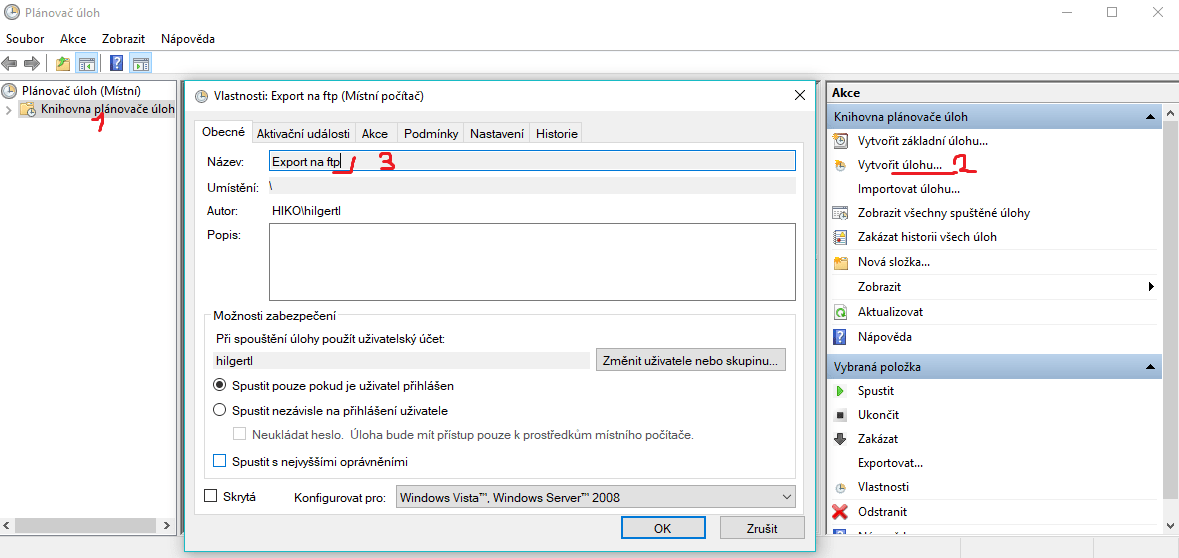
For periodic execution I used a tool that’s already in Windows: the Task Scheduler. In the scheduler we choose Create Task… and in the General section we enter its name.
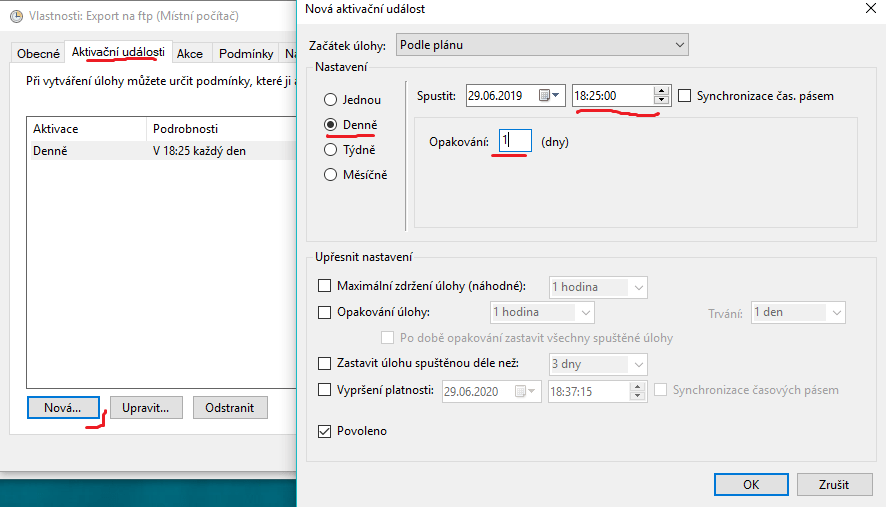
In the Triggers tab we choose how the script will run. We click the New button and fill it in as we like. I choose to run it daily at a set time.
Last, we fill in the Actions tab. Here we actually specify which file should be run.
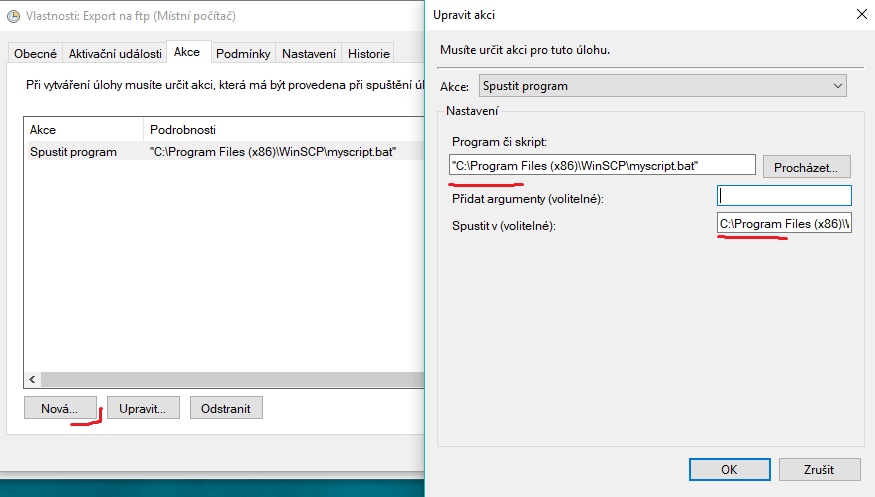
Just be careful that we enter the path to our script in quotes, e.g.: "C:Program Files (x86)WinSCPmyscript.bat"
In the Start in (optional) section we enter the path without quotes and only up to the directory where our script is. For example C:Program Files (x86)WinSCP
And that’s all! Now our files will be transferred to the FTP server every day at the set time.