
You update your opening hours on the website and a week later you find the old ones still showing on half the pages. Or the other way round: you edit one box on one page and it changes on eight others too.
Both have the same cause. In WordPress, the same piece of a page – a contact box, opening hours, a “Get in touch” banner – can be repeated in two ways. They look the same, but when you edit them, they behave in opposite ways.
How many times is your phone number on the site?
Try it right away. Type your domain and your number into Google:
site:yourcompany.com "608 111 222"Treat the result as an estimate. And if almost every page of the site comes up, that is not necessarily a problem – a phone number in the header or footer shows up everywhere, but it is usually one shared piece you change once. The interesting hits are the ones inside pages: in contact boxes, in the text, in a “Get in touch” banner. However many there are, that is how many times you will be changing the number next time.
An attachment or a shared document?
A repeated piece of a page is called a pattern in WordPress. And there are two kinds.
A regular pattern works like a file attachment. You email a price list to five people and each of them has their own copy. If one of them changes something in theirs, the others never know. And when you fix your file, the fix does not reach them – you would have to send it out again. A website works the same way: a pattern inserted on ten pages is ten separate copies. That is where the old phone number on nine pages out of ten comes from.
A synced pattern works like a shared document. Instead of an attachment, you send a link. Everyone looks at one and the same document, so they see a fix straight away. But it works the other way too – whoever changes something in it changes it for everyone. That is where the second situation comes from: an edit meant for one page spreads across the whole site.
What changes when:
| I edit the box on one page | I edit the original pattern | |
|---|---|---|
| Regular pattern (attachment) | it changes only on that page | boxes already inserted stay the same, only newly inserted ones get the new version |
| Synced pattern (shared document) | you cannot do it directly, the editor sends you to the original – and it changes everywhere | it changes everywhere |
Neither is a mistake. Contact details and opening hours suit a synced pattern; things that should differ from page to page suit a regular one.
How do I tell them apart in the editor?
The screenshots below come from a WordPress admin set to Czech. The English labels are in bold in the text.
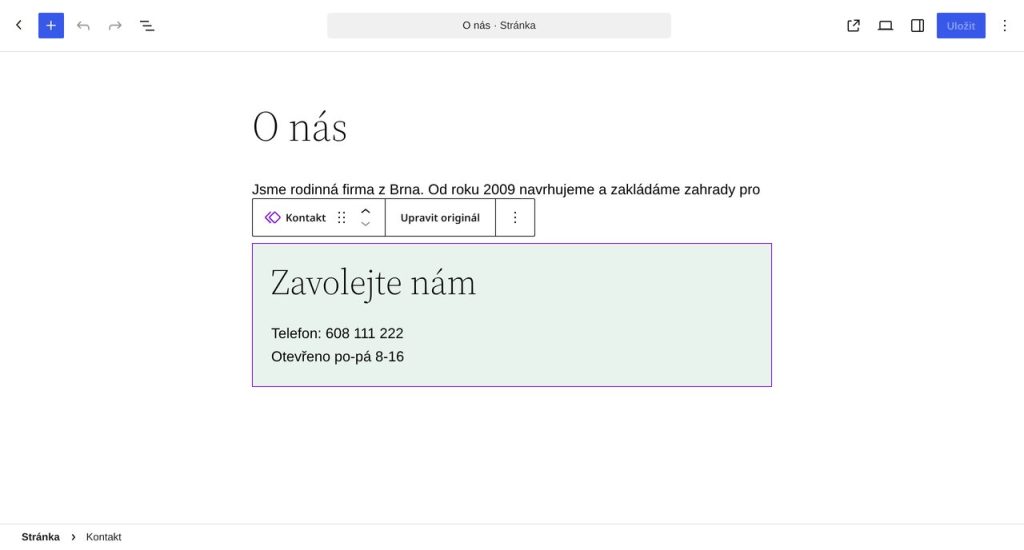
Click the box. If it is a synced pattern, the pattern name and an Edit original button appear above it – and you cannot type into it directly.
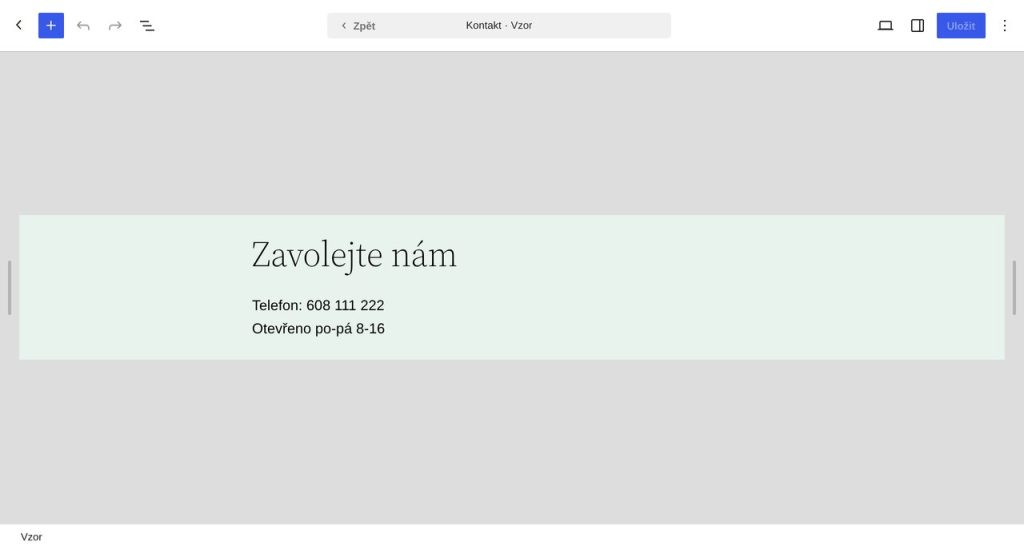
When you click Edit original, the editor switches to the pattern itself. You can tell by the header with the pattern name and a Back arrow. Whatever you save now changes on every page where the pattern is inserted.
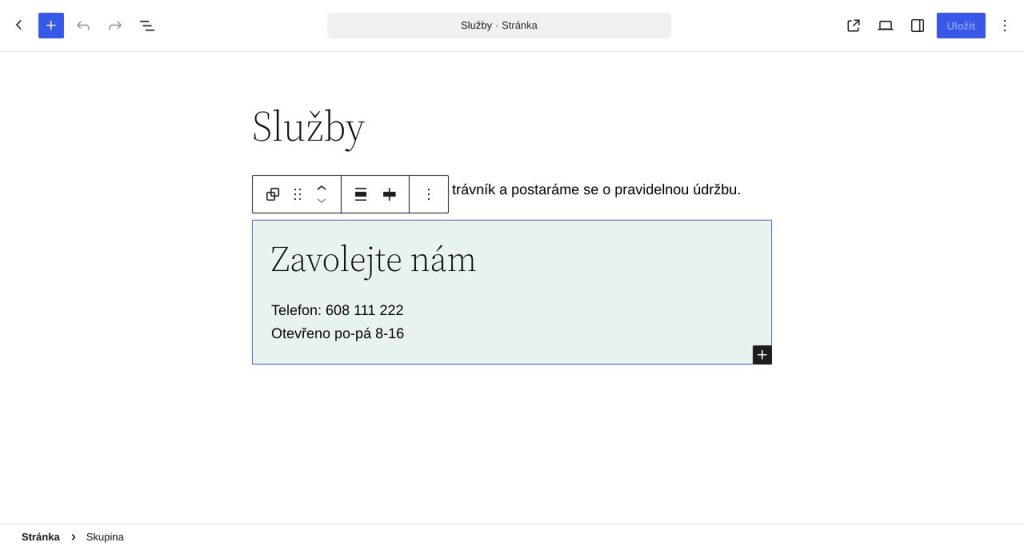
If the button does not appear and you can type into the box as usual, it is regular content of that page. The edit applies to that page only.
How to turn your contact box into a shared document
- Select the whole contact box. The safest way is through List View (the icon with three lines in the top toolbar on the left).
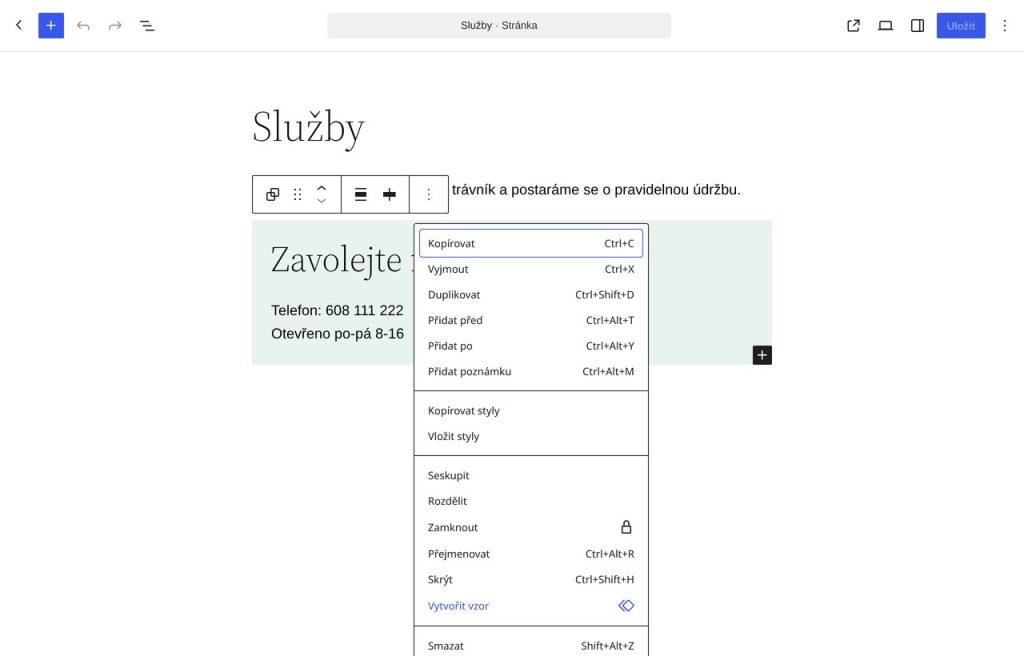
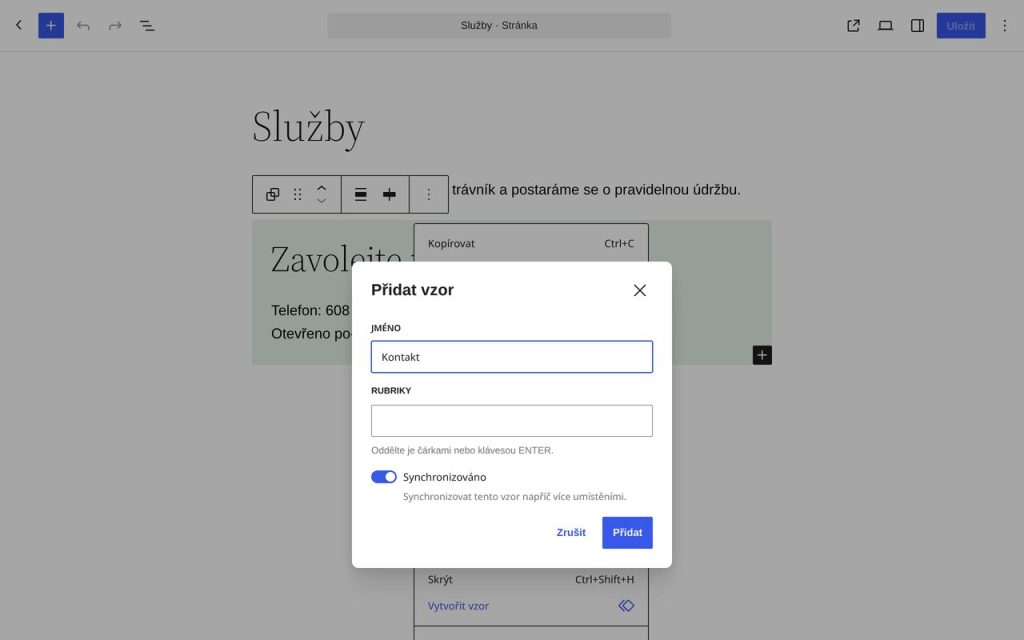
- Click the three dots and choose Create pattern.
- Give it a name, for example “Contact”.
- Turn on Synced – that is the whole difference between an attachment and a shared document.
- Click Add.
Then, on the other pages, delete the old box and insert the new pattern in its place (the + button, Patterns tab). Pages that already exist will not rewrite themselves – you need to go through each of them once by hand. After that, the phone number changes in one place.
An exception on one page
When the branch page needs a different number, detach the pattern there: three dots → Detach and confirm.
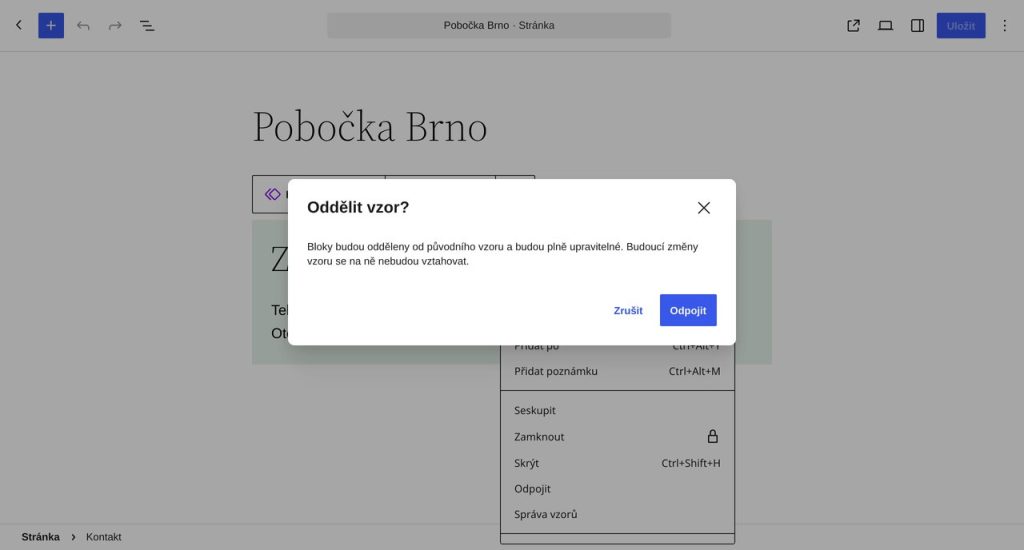
The other pages are not affected. Just remember that this page will not change the next time you update your contact details.
The phone number in the header and footer
That one usually lives in the site template, not in the page, so you will not find it in the page editor. If you do not know where to change it, ask whoever built your website.
What if there is too much of it?
Going through it once is worth it – the next phone number change then takes a minute instead of an afternoon, and no old details are left hanging anywhere. If you do not have the time or the inclination, this is exactly the kind of clean-up I do as part of website management. I find everywhere the details repeat, consolidate them into patterns and show you where to change them yourself next time.