
Every server goes down now and then – a restart after an update, an overload, or an outage at the hosting provider. If your site sits behind the Cloudflare proxy (the orange cloud), visitors will see this instead of your website:
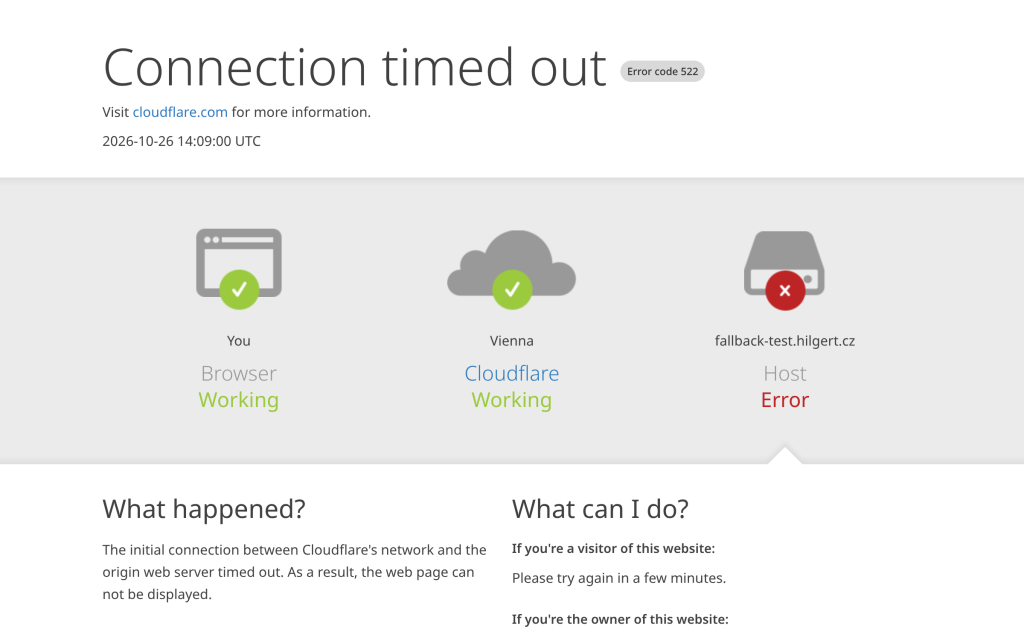
The page is in English, technical, with no logo and no contact. The customer has no idea whether the company still exists, and on an online shop they won’t find out they could order by phone.
On my own site I solved it with one small Cloudflare Worker. In normal operation it does nothing, and only when Cloudflare can’t reach the server does it return a page in the site’s colours, in the site’s language and with a contact.

Why not the built-in “Error Pages”?
Cloudflare has an Error Pages section (Custom Errors) in the zone that does exactly this – but only on the paid Pro plan and higher. On the Free plan you’ll only see an “Upgrade plan” button there.

A Worker is free on the Free plan, it just has a daily request limit. Watch out for that one – more about it in step 5.
How does it work?
The Worker sits between the visitor and the server. It passes every request to the server unchanged (fetch(request)) and returns the response. It only steps in when the response is one of the errors Cloudflare generates itself because it couldn’t get to the server:
| Code | Meaning |
|---|---|
| 520 | the server returned garbage or an empty response |
| 521 | the server refuses the connection (the web server isn’t running) |
| 522 | the connection timed out (the server doesn’t respond) |
| 523 | the server is unreachable |
| 524 | the server didn’t respond in time |
| 525, 526 | an SSL problem between Cloudflare and the server |
| 530 | an origin DNS error |
What matters is what the Worker doesn’t do, so it never shows the page by mistake:
- It ignores errors from your own server (500, 502, 503). When PHP or the database goes down, you want to see it. Otherwise you’d mask an application error and never learn about it.
- It only steps in on
GET/HEADwithAccept: text/html, i.e. when a browser asks for a page. A submitted form (POST), AJAX,wp-json, images and API clients don’t get the outage page – they get the original error. So a form never pretends it was sent, and a JSON client never receives HTML. - It returns status 503 with
Retry-AfterandCache-Control: no-store. Google recognises a temporary outage and nothing gets cached.
Step 1: Create the Worker
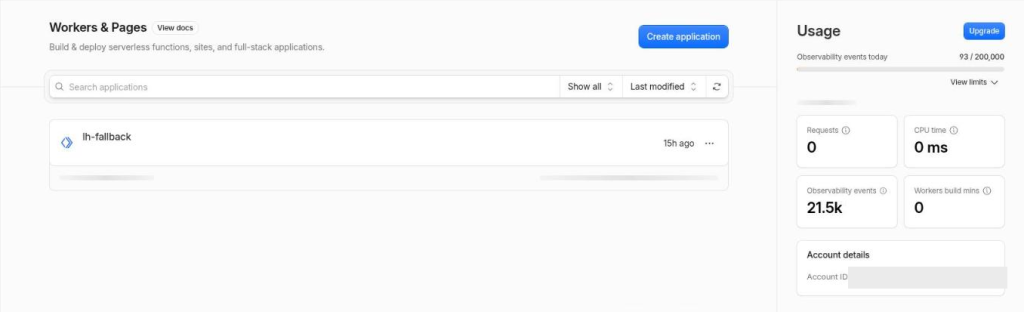
In the account’s left menu open Compute → Workers & Pages and click Create application.
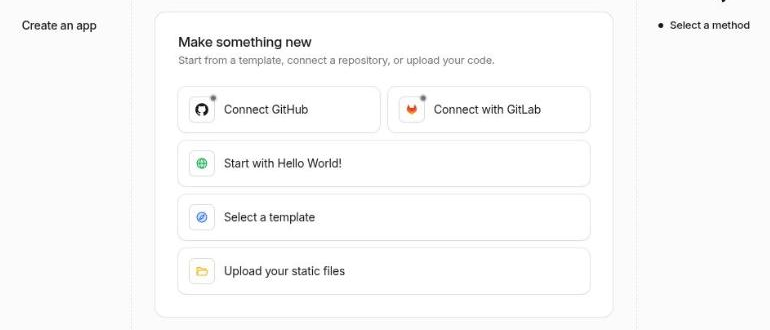
Choose Start with Hello World!.
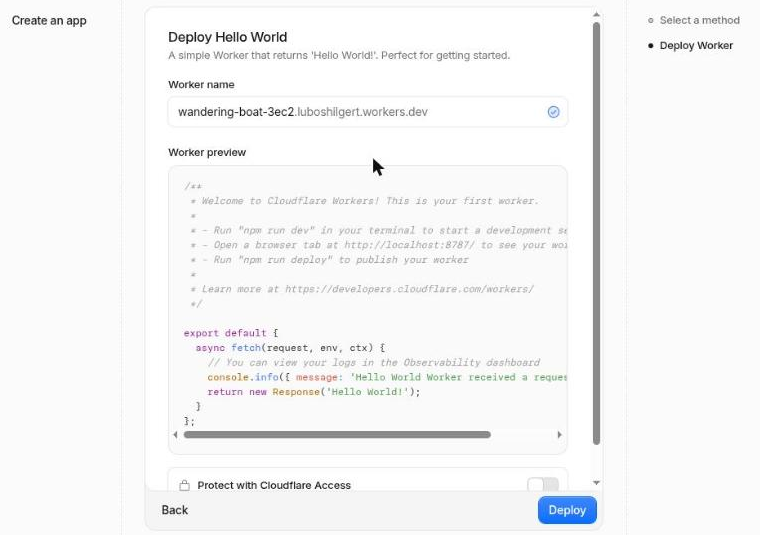
Name the Worker (e.g. fallback) and click Deploy. Don’t worry about the sample code, we’ll replace it in a moment. The Worker doesn’t run anywhere yet – until you assign it a route, it won’t touch any website.
Step 2: Paste the code
In the Worker detail click Edit code in the top right, delete the sample, paste the code below and click Deploy.
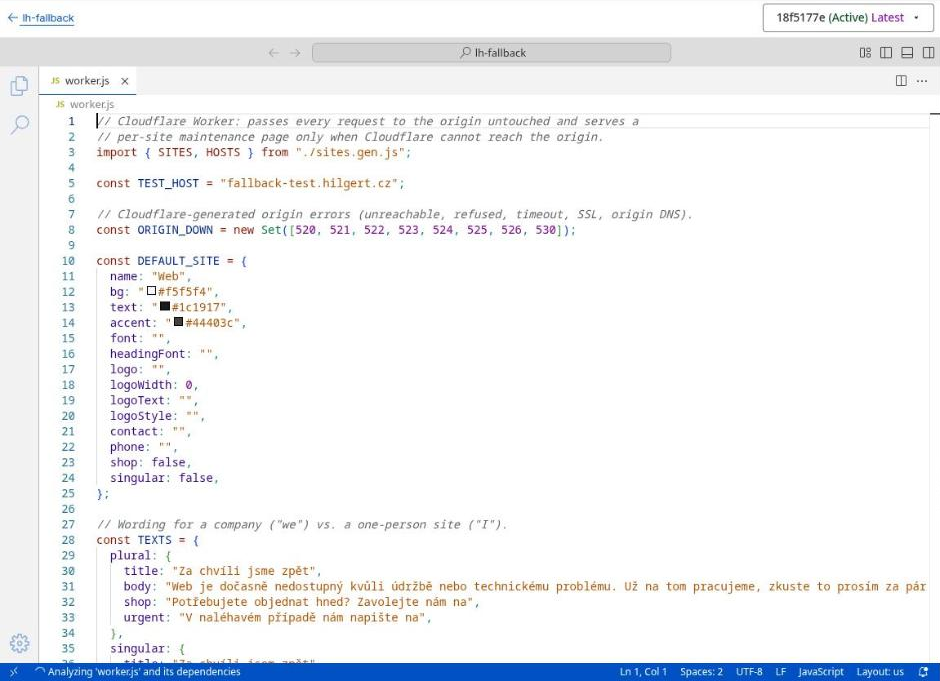
This is a simplified version for a single site. Adjust SITE (name, colours, e-mail):
// Errors Cloudflare generates itself when it cannot reach the origin.
const ORIGIN_DOWN = new Set([520, 521, 522, 523, 524, 525, 526, 530]);

const SITE = {
  name: "My website",
  bg: "#ffffff",
  text: "#1a1a1a",
  accent: "#1e40af",
  contact: "[email protected]",
};

export default {
  async fetch(request) {
    let response = null;
    try {
      response = await fetch(request);
    } catch (e) {
      // Network error on the way to the origin - treat it as down.
    }
    if (response && !ORIGIN_DOWN.has(response.status)) return response;

    const wantsHtml = ["GET", "HEAD"].includes(request.method)
      && (request.headers.get("accept") || "").includes("text/html");
    if (!wantsHtml) {
      return response ?? new Response("Service Unavailable", {
        status: 503,
        headers: { "cache-control": "no-store" },
      });
    }

    return new Response(request.method === "HEAD" ? null : page(SITE), {
      status: 503,
      headers: {
        "content-type": "text/html; charset=utf-8",
        "cache-control": "no-store",
        "retry-after": "300",
        "x-fallback": "1",
      },
    });
  },
};

function page(s) {
  return `<!doctype html>
<html lang="en"><head><meta charset="utf-8">
<meta name="viewport" content="width=device-width, initial-scale=1">
<meta name="robots" content="noindex">
<title>${s.name} - we'll be right back</title>
<style>
  body { margin: 0; min-height: 100vh; display: grid; place-items: center;
         background: ${s.bg}; color: ${s.text};
         font: 18px/1.6 system-ui, sans-serif; padding: 24px; box-sizing: border-box; }
  main { max-width: 34rem; }
  h1 { color: ${s.accent}; line-height: 1.2; }
  a { color: ${s.accent}; }
</style></head>
<body><main>
  <h1>We'll be right back</h1>
  <p>The website is temporarily unavailable due to maintenance or a technical problem.
     We're already working on it, please try again in a few minutes.</p>
  <p>If it's urgent, write to us at
     <a href="mailto:${s.contact}">${s.contact}</a>.</p>
</main></body></html>`;
}
A few notes on the code:
- Everything has to live inside the Worker. The logo, CSS and images won’t load from a dead server. Embed the logo as a data URI (
data:image/svg+xml;base64,...); fonts can come from Google Fonts. - Adapt the texts. Besides the e-mail you can add a phone number, a link to social media or anything else that helps the customer during an outage.
- The preview in the editor on the right sends requests from Cloudflare IP addresses. If your zone has rules that block IP addresses, you’ll see
Error 1106 Access deniedthere. That’s fine, test on the real address (step 4).
Step 3: Turn off the workers.dev address
Every new Worker gets a public address <name>.<account>.workers.dev. You don’t need it for this, and fetch(request) wouldn’t make sense there anyway. In the Worker detail open the Domains tab and in the Worker URL section switch off both Production and Preview.
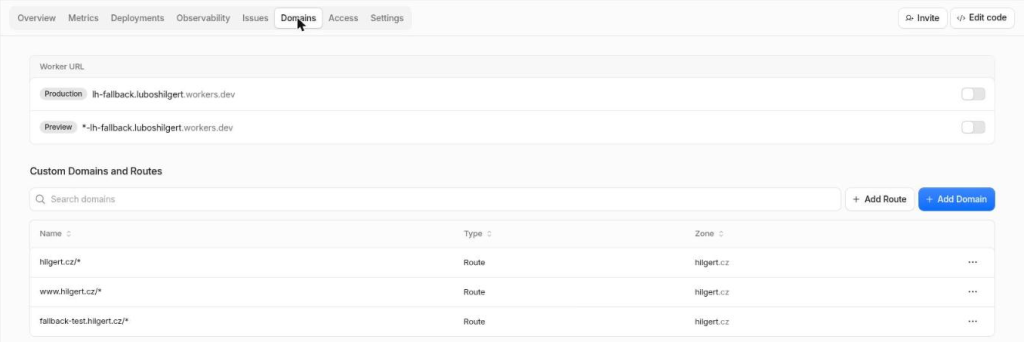
The same tab will later also show the routes the Worker serves.
Step 4: A safe test without taking the server down
You probably don’t want to test by knocking your live site over. It’s enough to create a test subdomain in the zone that points to an address where nothing ever runs – Cloudflare will then always return 522 on it.
In the zone open DNS → Records → Add record and fill in:
- Type: A
- Name:
fallback-test - IPv4 address:
192.0.2.1(a documentation address from RFC 5737, it leads nowhere) - Proxy status: Proxied (orange cloud – without it the Worker doesn’t run)
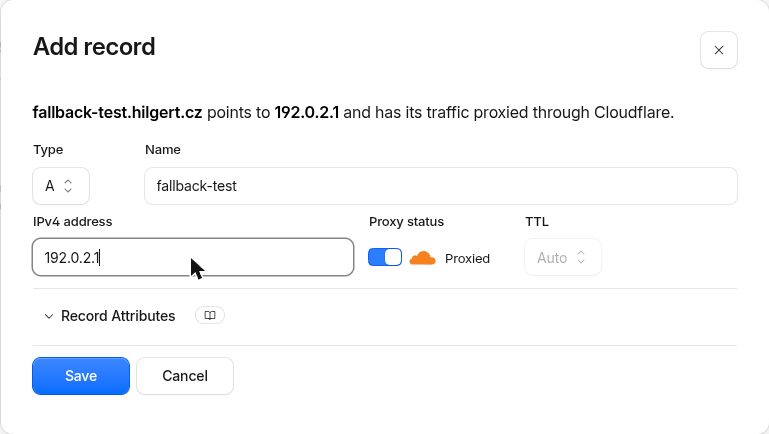

Step 5: Assign the Worker to the site (route) and set fail open
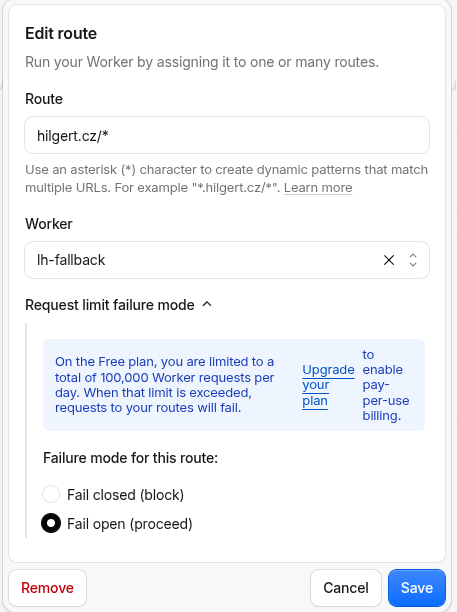
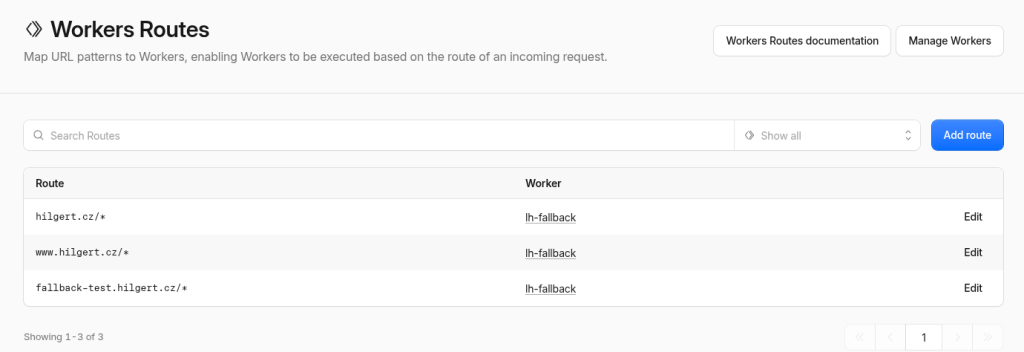
In the zone open Workers Routes and click Add route.
- Route: first
fallback-test.yourdomain.com/*, after testingyourdomain.com/*andwww.yourdomain.com/*(each as a separate route). - Worker: your Worker.
- Request limit failure mode: expand it and choose Fail open (proceed).
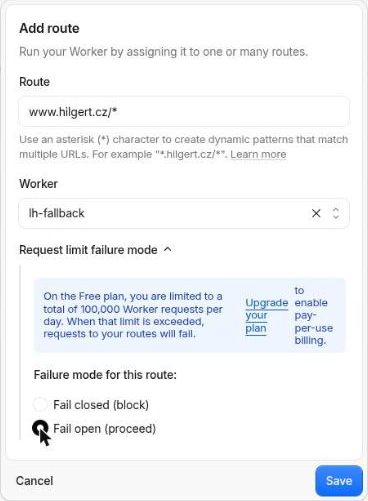
This last setting is the most important one in the whole guide. The Free plan has a limit of 100,000 Worker requests per day, for the whole account, not per domain. The default is Fail closed (block): once you exhaust the limit, Cloudflare starts blocking requests to your sites. The outage safeguard would cause an outage itself. With Fail open, requests go straight to the server after the limit is used up, as if the Worker didn’t exist.
Write routes for specific hostnames, not *.yourdomain.com/*. The leading asterisk would also catch development and internal subdomains where you don’t want the Worker.
Step 6: Check that it works (and doesn’t get in the way)
The test host should return the outage page:
curl -sI -H "accept: text/html" https://fallback-test.yourdomain.com/
# HTTP/2 503, x-fallback: 1, retry-after: 300, cache-control: no-store
An API request on the same host should get the original error, not HTML:
curl -sI -H "accept: application/json" https://fallback-test.yourdomain.com/
# HTTP/2 522
And after adding the route, the live site should behave exactly as before. Click through the home page, a few subpages, the admin, a form submission. The x-fallback header must never appear on a running site.
Open the page in a browser and on a phone too. This is the page from the sample code above (the Czech version):

Watch the limit: every request counts, not just outages
The Worker runs all the time, not only during an outage
The Worker doesn’t know in advance that the server is down – it only finds out from the server’s response. That’s why it runs on every request that matches the route, even when the site works normally.
And one page view isn’t one request: the browser separately downloads the HTML, every CSS and JS file, every image, fonts, AJAX calls. On WordPress that’s typically 30-80 requests per page view. Cloudflare’s cache doesn’t help either – a Worker on a route runs before it.
You’ll see the real numbers in the Worker detail on the Metrics tab (Invocations), including a breakdown by hostname:
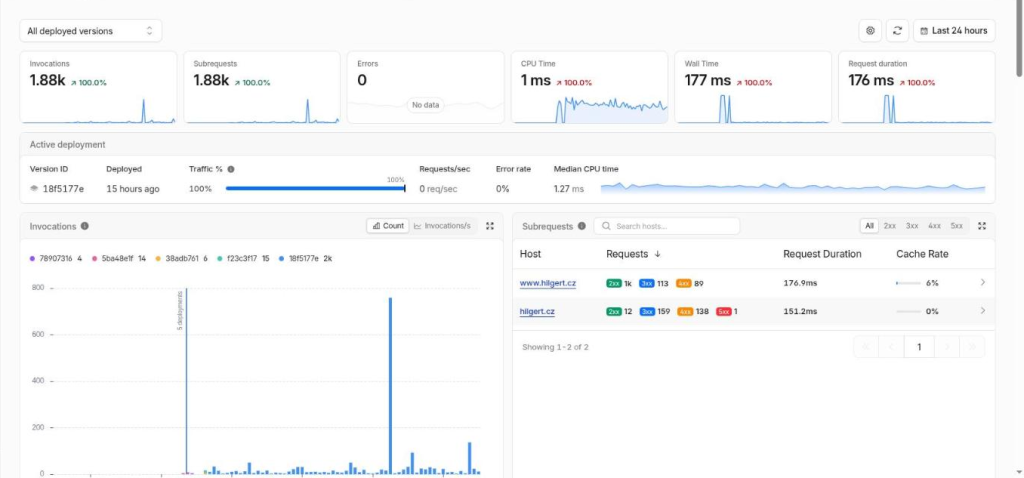
My site hilgert.cz makes roughly 2,500-3,000 invocations a day, so it fits under the limit with plenty of room. But if you have other Workers in the account or want to add the Worker to more sites, the invocations add up. A site with more traffic (an online shop, a news site) gets over 100,000 easily. Then there are two sensible options:
- Workers Paid for USD 5 a month – 10 million requests a month included.
- Stay on Free with fail open and accept that once the limit is used up, an outage will again show the plain Cloudflare error.
Optimisation: leave out static files
Only HTML needs the outage page. Images, CSS and JS from wp-content and wp-includes are just passed through by the Worker unchanged, yet they count towards the limit. You can exclude them: in Workers Routes add another route with the same hostname and a specific path, and choose None as the Worker:
www.yourdomain.com/wp-content/*→ Worker: Nonewww.yourdomain.com/wp-includes/*→ Worker: None
For each request Cloudflare uses the most specific route, so static files bypass the Worker and everything else still goes through it. During an outage the images will show the plain Cloudflare error, but nobody sees that anyway – the browser only needs them for a page that didn’t load.
How much it saves depends on the site – on my sites it was 10-70% of invocations. A small site saves less, probably because most of its traffic is bots fetching only HTML and returning visitors have the static files in their browser cache. An online shop with real customers and lots of product photos saves more. Measure it on your own site in Metrics before the change and a day after.
What doesn’t it solve?
- When the server doesn’t respond at all (522), Cloudflare waits about 20 seconds for the connection before the Worker gets the error (I measured 19.7 s). There’s no safe way to shorten it – the Worker can’t tell a slow page from a dead server.
- The Worker only runs on records with the orange cloud. Sites without the proxy (e.g. because of Cloudflare’s 100-second limit on long requests) won’t show the outage page. Long crons are better run from the command line on the server and long APIs moved to a subdomain without the proxy – the main site can then stay behind it.
Comments
No comments yet. Be the first.
I approve comments manually; yours will appear once approved.