Recently I was adding address autocomplete to a website using the Places API. Google has a nice tutorial for it, so I figured I’d be done quickly. However, compared to the demo I needed a few changes, so a bit more research awaited me. On top of that, if you open their demo in JSFiddle (as they themselves encourage), it won’t work for you.
That’s why I decided to write a short article, including an example of autocompletion in a simple (and fairly common) address form like the one you’ll find in every e-shop (and therefore also when building one).
Google developers console – API key
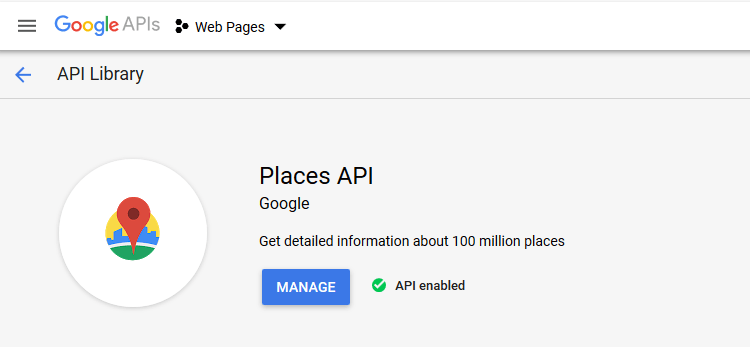
First, you need to obtain an API key. You get it from the Google developers console. Sign up and enable the Places API from the API library. It’s also a good idea to restrict where your key can be used – most often some web address. That way, even if someone gets hold of your key, it won’t be of any use to them. This relates to the last, perhaps less pleasant, piece of information: it isn’t free. For it to work, you have to link your project to a billing account (i.e. enter a credit card). You’re then charged based on your search volume.
Code and the JSFiddle example
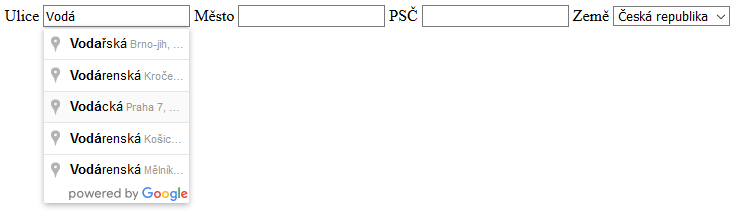
Fortunately, for testing purposes on JSFiddle we can use the API key that Google provides in its tutorial. In my example I limited the address search to the Czech Republic and Slovakia. You enter the address into the Street input, where address suggestions will pop up. After you confirm the correct suggestion, the address is split into three inputs (Street, City, ZIP) and the country (Czech Republic, Slovakia) is selected in the select box. The best thing is to try it out on the example. Below is just an explanation of a few parts of the code:
Reference for loading the Places library. AIzaSyCkUOdZ5y7hMm0yrcCQoCvLwzdM6M8s5qk is the API key
<script src="https://maps.googleapis.com/maps/api/js?key=AIzaSyCkUOdZ5y7hMm0yrcCQoCvLwzdM6M8s5qk&libraries=places&callback=initAutocomplete" async defer></script>
The search runs over the Street input
autocomplete = new google.maps.places.Autocomplete(

document.getElementById('l_ulice'), {types: ['geocode']});
The search only runs over addresses in the Czech Republic and Slovakia
autocomplete.setComponentRestrictions(

{'country': ['cz', 'sk']});
Extracting the needed data that Google returns and filling it into the appropriate fields is then handled by the fillInAddress function.
autocomplete.addListener('place_changed', fillInAddress);
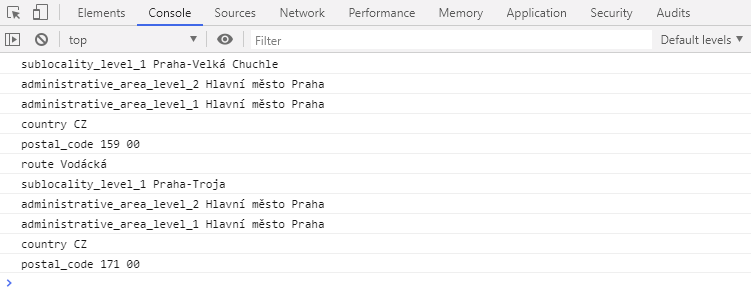
Into the for loop in the fillInAddress() method I added an informational printout console.log(component.types[0] + " " + component['short_name']); In the console (FF and Chrome F12) you’ll find out what the components are called and what values they return.