
A while back I wrote a small plugin that autocompletes addresses from Mapy.com on an e-shop checkout – you pick the street and the town, ZIP and country fill in automatically. It worked well, but it was a plugin „just for me“: hardcoded and tailored to specific client sites. Now, with the help of Claude Code, I’ve turned it into a universal plugin that anyone can install and configure in the admin.
Here’s how it came about – plus a guide to getting your Mapy.com key. Spoiler: no credit card needed.
How it started – the checkout
The first version did one thing: address autocomplete on the WooCommerce checkout. The customer starts typing the street, picks from the Mapy.com suggestions, and the form fills itself – street, town, ZIP, country. Fewer typos, and above all clean, correctly structured addresses – which pays off with every integration with external carrier APIs, something I deal with across various projects.
Then came Contact Form 7
For one client a new requirement came up: the same autocomplete in a contact form (Contact Form 7), not just the checkout. So I added a CF7 adapter. But the field mapping – which field is the street, which is the town, ZIP, country – was again hardwired to a specific form on a specific site.
The catch: it was a plugin just for me
It worked, but it had one flaw. Everything essential – the API key, where to autocomplete, the field names in the form – was hardcoded. Every new site had to be set up exactly according to the code, or the code had to be tweaked.
I decided to change that (with Claude Code)
I decided to make it a plugin I could release – public, universal and fully configurable from the admin. With Claude Code I:
- pulled all the settings out of the code into a single admin page,
- added toggles for where to autocomplete (WooCommerce / Contact Form 7),
- added a choice of countries to suggest addresses from,
- and most importantly, configurable field mapping for CF7 – globally and per individual form.
Automatic updates from GitHub Releases were added too. But the key point is that the plugin is now usable even by people who don’t want to touch code.
Why Mapy.com and not Google
The autocomplete runs on the Mapy.com suggest API. For this purpose it has one big advantage over Google Places right at the start: registering at developer.mapy.com doesn’t ask you for a credit card. With Google Cloud you can’t even get the API running without a billing account with a card; with Mapy.com you just register and you have a key.
And the free tier is generous. On the basic (free) plan you get 250,000 credits per month and paid usage is disabled by default – so you can’t get an unexpected invoice. When the credits run out, the API simply stops responding until the limit resets next month. For ordinary autocomplete on a single e-shop, a quarter of a million credits is orders of magnitude more than you’ll use.
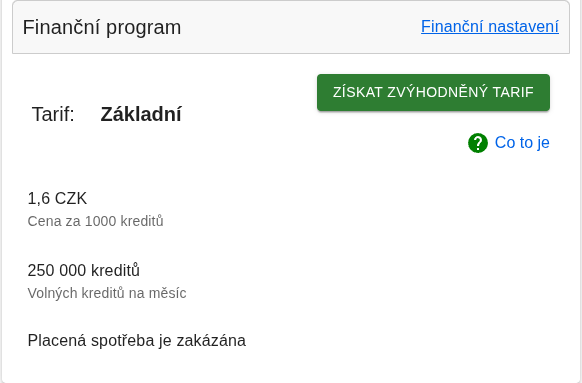
Note: pricing and credit amounts can of course change over time – the figures above are as of the time of writing. Always check the current terms in your account.
Guide: how to get a key at developer.mapy.com
Step by step:
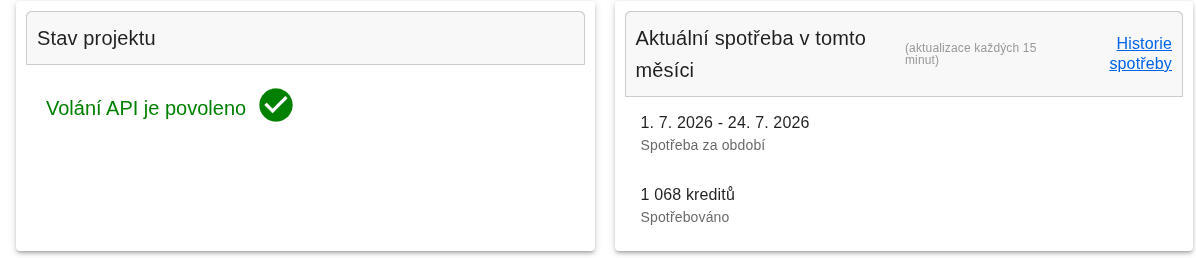
1. Registration and project. Sign in at developer.mapy.com (with a Seznam account) and create a new project in the Projects section (the „Create new project“ button). The project overview then shows that API calls are enabled, plus your ongoing credit usage.
2. API key. The project already has a default key in the „API keys“ section. Copy it.
3. Restrict the key – don’t skip this. The key is used directly in the browser, so it’s visible in the page source. That’s by design at Mapy.com and it’s fine, but it means someone could copy it and use it on another site (and burn through your credit). So restrict it under Key settings → API key restrictions. There are three types:
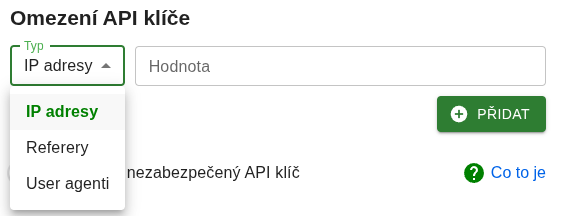
- Referers (HTTP referer) – typically your site’s domain. For an autocomplete running in the browser, this is the most common and most sensible choice.
- IP addresses – better suited to server-side calls where there’s no referer.
- User agents – as an extra.
For a site on a single domain you’ll most likely go with restricting by referer to the site’s domain.
4. Put the key into the plugin. In WordPress go to Settings → LH Seznam.cz autocomplete and paste the key into the „API klíč Mapy.cz“ field.
Plugin settings
All the settings live on a single page in Settings → LH Seznam.cz autocomplete:
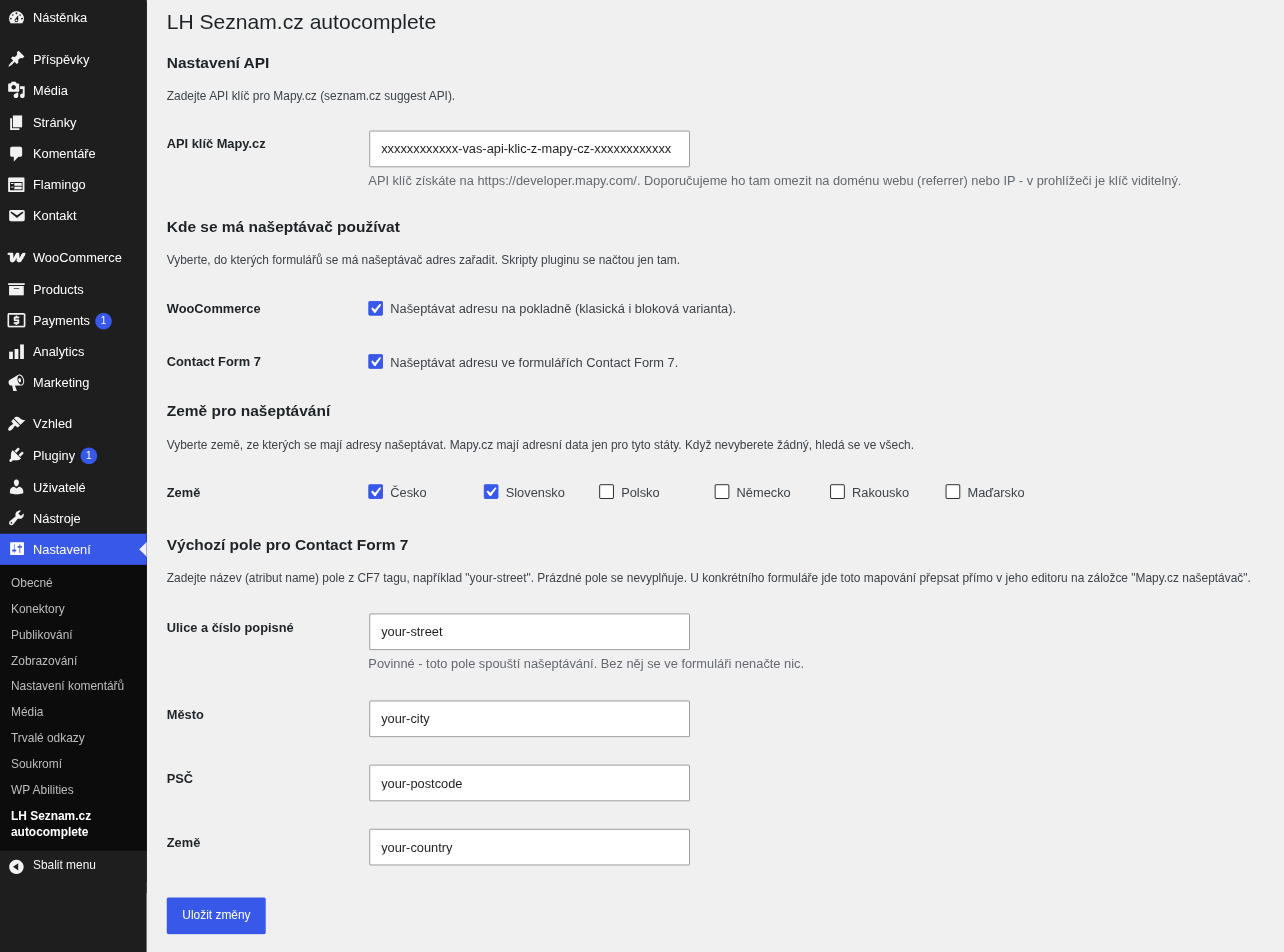
- API klíč Mapy.cz – without it the plugin won’t load anywhere.
- Where to autocomplete – toggles for WooCommerce (both classic and block checkout) and for Contact Form 7. The plugin’s scripts only load where autocomplete is enabled.
- Countries to suggest from – Czechia, Slovakia, Poland, Germany, Austria and Hungary. The default is Czechia and Slovakia; if you don’t tick any country, all supported ones are searched.
- Default CF7 fields – the names (
name) of fields from CF7 tags: street, town, ZIP, country. The „street“ field is required because it triggers autocomplete; the others are optional. For an individual form you can override the mapping right in its editor, on the „Mapy.cz našeptávač“ tab.
Per-form settings (Contact Form 7)
Global field mapping is enough as long as your forms use the same field names. If not, you can override it per form. A „Mapy.cz našeptávač“ tab appears in the CF7 editor, where you set things just for that one form:
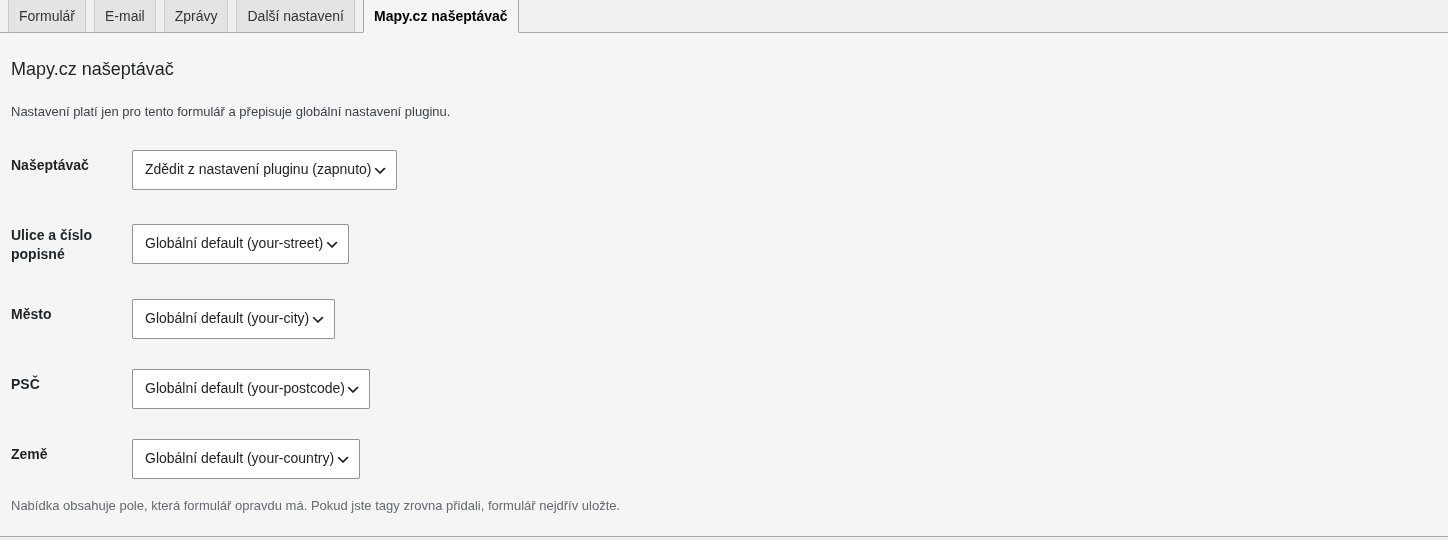
- Autocomplete – turn it on or off just for this form, or inherit from the plugin’s global setting.
- Street, Town, ZIP, Country – for each field you either pick a specific form field, keep the Global default, or set — don’t use —.
The dropdown already contains the fields the form actually has (based on its tags), so you can’t mistype a name. Street is required here too – it triggers autocomplete.
Where to find it
The plugin is on GitHub: github.com/luboshilgert/lh-seznamcz-autocomplete. It’s not on wordpress.org, but it updates itself from GitHub Releases (via Plugin Update Checker), so updates are offered the standard way in the admin.
What used to be a plugin tailored to a single client is now a tool anyone can deploy – and the main trick was moving the configuration out of the code and into the admin. Add that Mapy.com doesn’t want a credit card and offers a generous free tier, and for Czech and Slovak sites it’s a rather pleasant alternative to Google Places – which you can’t even get running without a card.